Working with the image archive
General
When you save an image or video clip, the camera stores the image/video file in the image archive on the memory card. You can open an image in the image archive and, for example, select another image mode, apply color alarms, and add measurement tools. You can also open and play saved video clips.
In the camera, the image archive is called Gallery. The Gallery can include one or several folders. New images and video clips will be saved to the active folder, at the top of the Gallery. You can create new folders, rename a folder, change the active folder, move files between the folders, and delete folders.
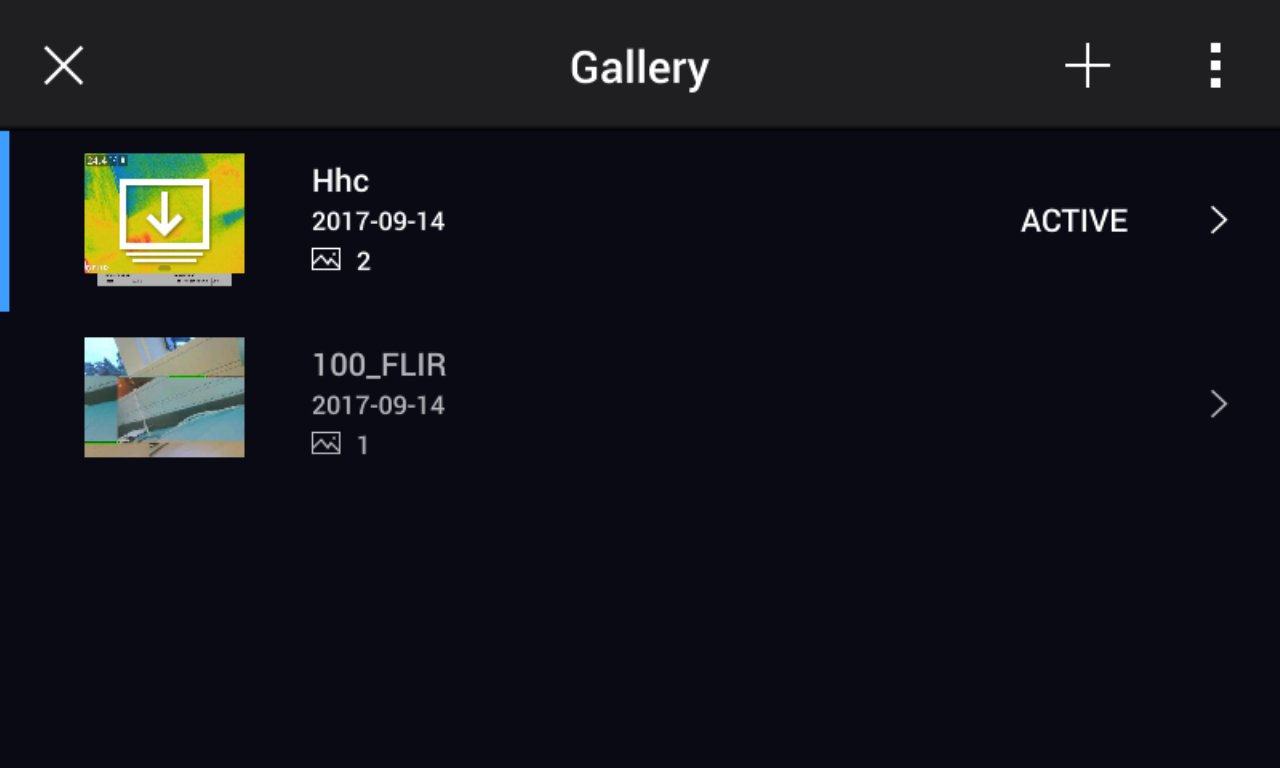
Opening image and video files
Follow this procedure:
Push the Image archive button
 . This displays the Gallery with one or more folders.
Select a folder and push the joystick.
Select the image or video clip you want to view and push the joystick.
To view the previous/next image or video clip, move the joystick left/right.
To return to the folder overview, push the back button
 .
.To return to the Gallery, push the back button
again.
Creating a new folder
Follow this procedure:
Push the image archive button
. This displays the Gallery .On the top toolbar, select the
 icon and push the joystick.
A soft keyboard is displayed, where you can enter the name of the folder by touching the screen.
When completed, touch Done on the soft keyboard.
The new folder automatically becomes the active folder and appears at the top of the Gallery.
Renaming a folder
You can change the name of the folders in the archive. The active folder cannot be renamed.
Follow this procedure:
Push the image archive button
. This displays the Gallery .On the top toolbar, select the
 icon and push the joystick.
Select the folder to rename and push the joystick.
On the right toolbar, select the
 icon and push the joystick.
A soft keyboard is displayed, where you can enter the new name of the folder by touching the screen.
When completed, touch Done on the soft keyboard.
Changing the active folder
New images and video clips are saved to the active folder.
To change the active folder, do the following:
Push the image archive button
. This displays the Gallery .On the top toolbar, select the
icon and push the joystick.Select the folder that new images and video clips should be saved to and push the joystick. This marks the selected folder with a tick.
On the right toolbar, select the
 icon and push the joystick.
The selected folder is moved to the top of the Gallery.
Moving files between folders
Push the image archive button
. This displays the Gallery .Select a folder and push the joystick.
On the top toolbar, select the
icon and push the joystick.Use the joystick to select the image and video items you want to move. You can also select the items by touching the screen. Selected items are marked with a tick.
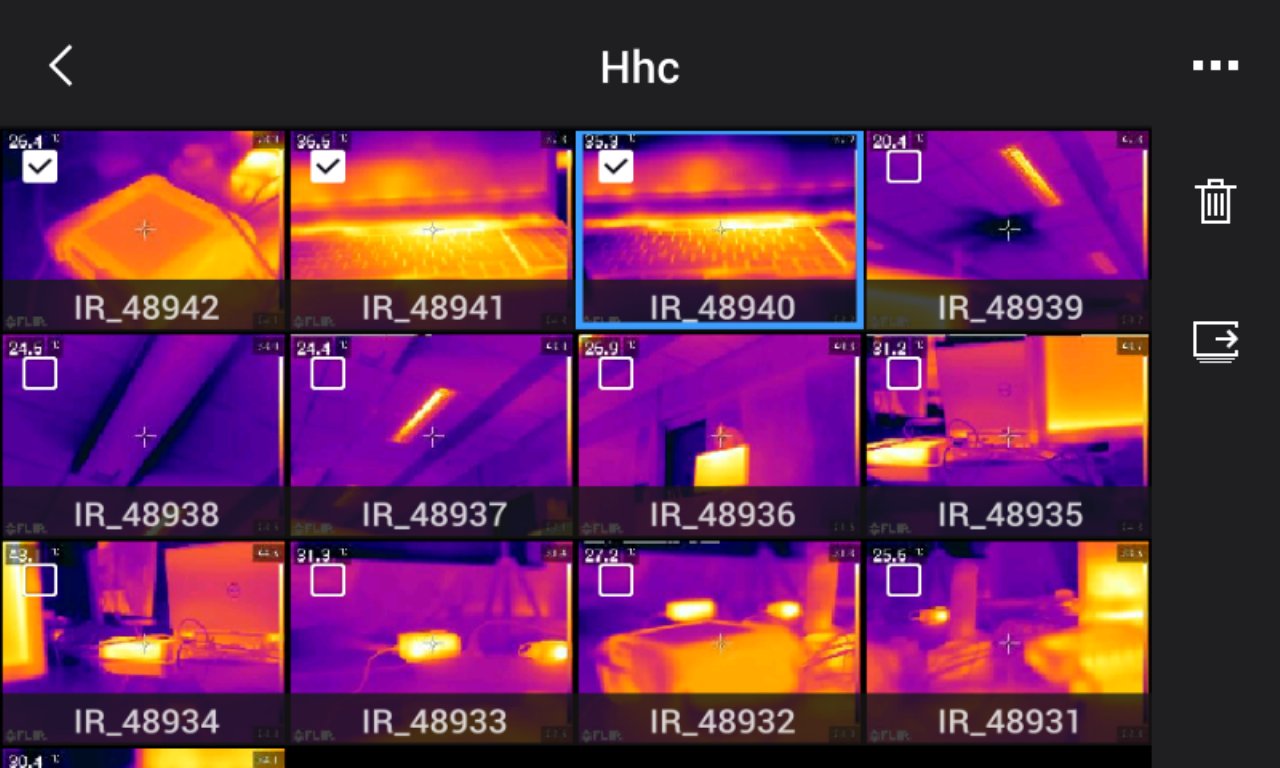
On the right toolbar, select the
 icon and push the joystick.
Select the destination folder for the selected items and push the joystick.
Deleting a folder
You can delete a folder in the archive. The active folder cannot be deleted.
Follow this procedure:
Push the image archive button
. This displays the Gallery .On the top toolbar, select the
icon and push the joystick.Select the folder to delete and push the joystick.
On the right toolbar, select the
 icon and push the joystick. This displays a dialog box.
To delete the folder, select Delete and push the joystick.
Deleting an image or video file
You can delete an image or video file from the image archive.
When deleting an image file, both images in the image file (thermal and visual) will be deleted.
Follow this procedure:
Push the image archive button
. This displays the Gallery .Select a folder and push the joystick.
Select the image or video clip you want to delete and push the joystick.
Push the joystick to display the top toolbar.
On the top toolbar, select the
icon and push the joystick.On the right toolbar, select the
icon and push the joystick. This displays a dialog box.To delete the image, select Delete and push the joystick.
Deleting multiple files
You can delete multiple image and video files from the image archive.
Follow this procedure:
Push the image archive button
. This displays the Gallery .Select a folder and push the joystick.
On the top toolbar, select the
icon and push the joystick.Use the joystick to select the image and video items you want to delete. You can also select the items by touching the screen. Selected items are marked with a tick.
On the right toolbar, select the
icon and push the joystick. This displays a dialog box.To delete the selected items, select Delete and push the joystick.
Deleting all files
You can delete all image and video files from the memory card.
Follow this procedure:
Push the joystick to display the menu system.
Select
 (Settings) and push the joystick. This displays the Settings menu.
Use the joystick to select Save options & storage > Delete all saved files... .
Push the joystick. This displays a dialog box.
To permanently delete all saved files, select Delete and push the joystick.