Recording video clips
You can record and save video clips to the memory card.
The camera can be configured to save video in *.mpg or *.csq format.
Select  (Settings) > Save options & storage > Video compression.
Mpeg (*.mpg): Mpeg recordings cannot be edited after the file has been saved.
Radiometric storage (*csq): A *.csq file supports full radiometry but is only supported by FLIR Systems software. The file does not include any visual image information. With this setting, only Thermal image mode is supported when recording video. If any other image mode is active when Video recording mode is selected, the camera will auto-switch to Thermal image mode.
Recording a video clip
Push the joystick to display the menu system.
Select
 (Recording
mode) and push the joystick. This displays a submenu.
(Recording
mode) and push the joystick. This displays a submenu.Select
 (Video) and push the joystick.
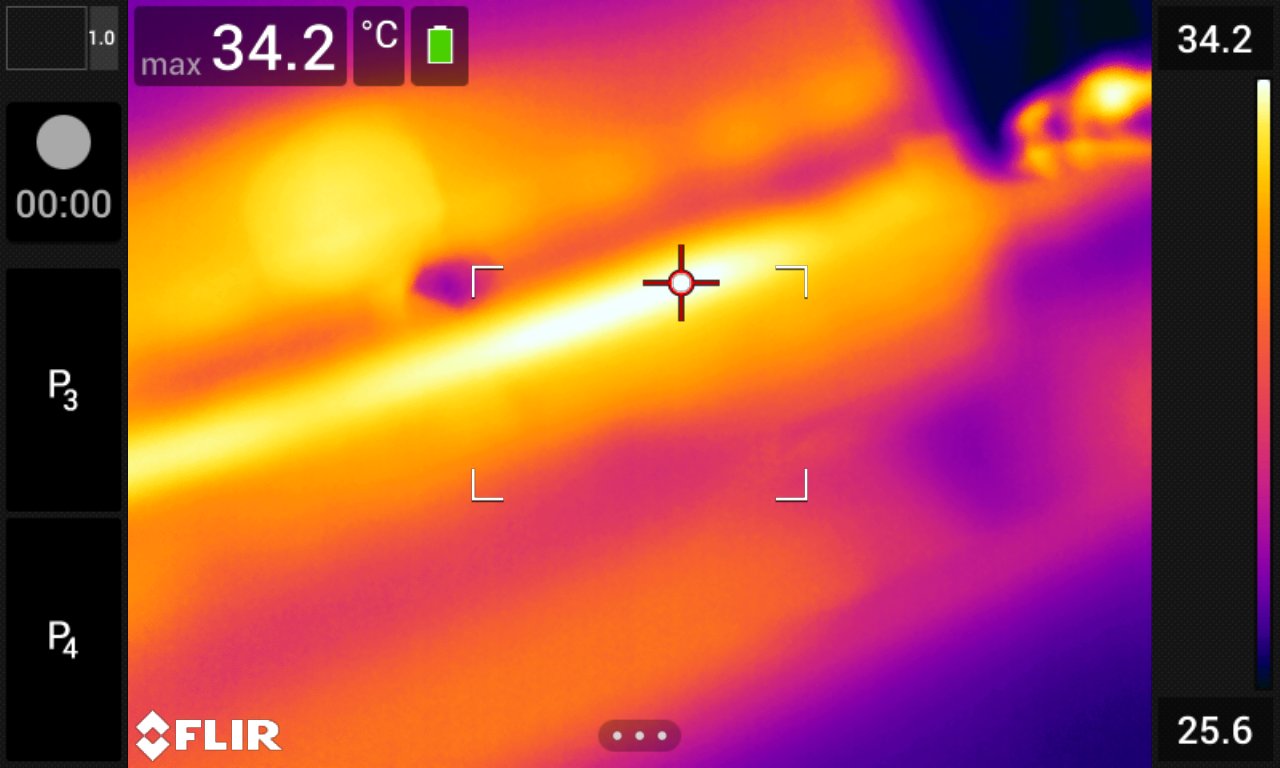
To start a recording, push the Save button fully down. A counter at the left of the screen displays the duration of the recording.
To stop a recording, push the Save button fully down. The recording is automatically saved to the image archive.
Playing a saved video clip
Push the image archive button
 . This displays the Gallery with one or more folders.
Select a folder and push the joystick.
Select the video clip you want to play and push the joystick.
Push the joystick to display the top toolbar.
On the top toolbar, select the
 icon and push the joystick.
To play or pause the video clip, push the joystick.