Batch processing
This chapter describes the screen elements of the Batch processing page.
General
The Batch processing page is the page where you create and run batches of jobs. Use the batch processing feature for automation of repetitive tasks when editing and normalizing thermal images. Operations that can be automated are, for example:
Set parameters.
Change settings.
Modify measurements.
Apply isotherms.
Change the palette.
Add a logo.
When processing batches of jobs, the following outputs are available:
Radiometric images (.jpeg) for further processing.
Plain overlay images for sharing online or with customers.
Transcoder from a radiometric sequence to an AVI video file.
Radiometric data exported to CSV files.
Go to Settings to configure if and how you want to use an image overlay for batch processing.
Batch jobs are saved in the .atb (advanced thermal batch) file format.
Navigation
The FLIR Thermal Studio application guides the user through the batch processing steps, which can be summarized as:
Select which jobs to run.
Place the jobs in the correct order, and set values where applicable.
Select which images to be processed in the batch.
Place the images in the correct order.
Start processing.
This image shows what the user interface looks like when you have selected to run the predefined batch Normalize temperature scale.
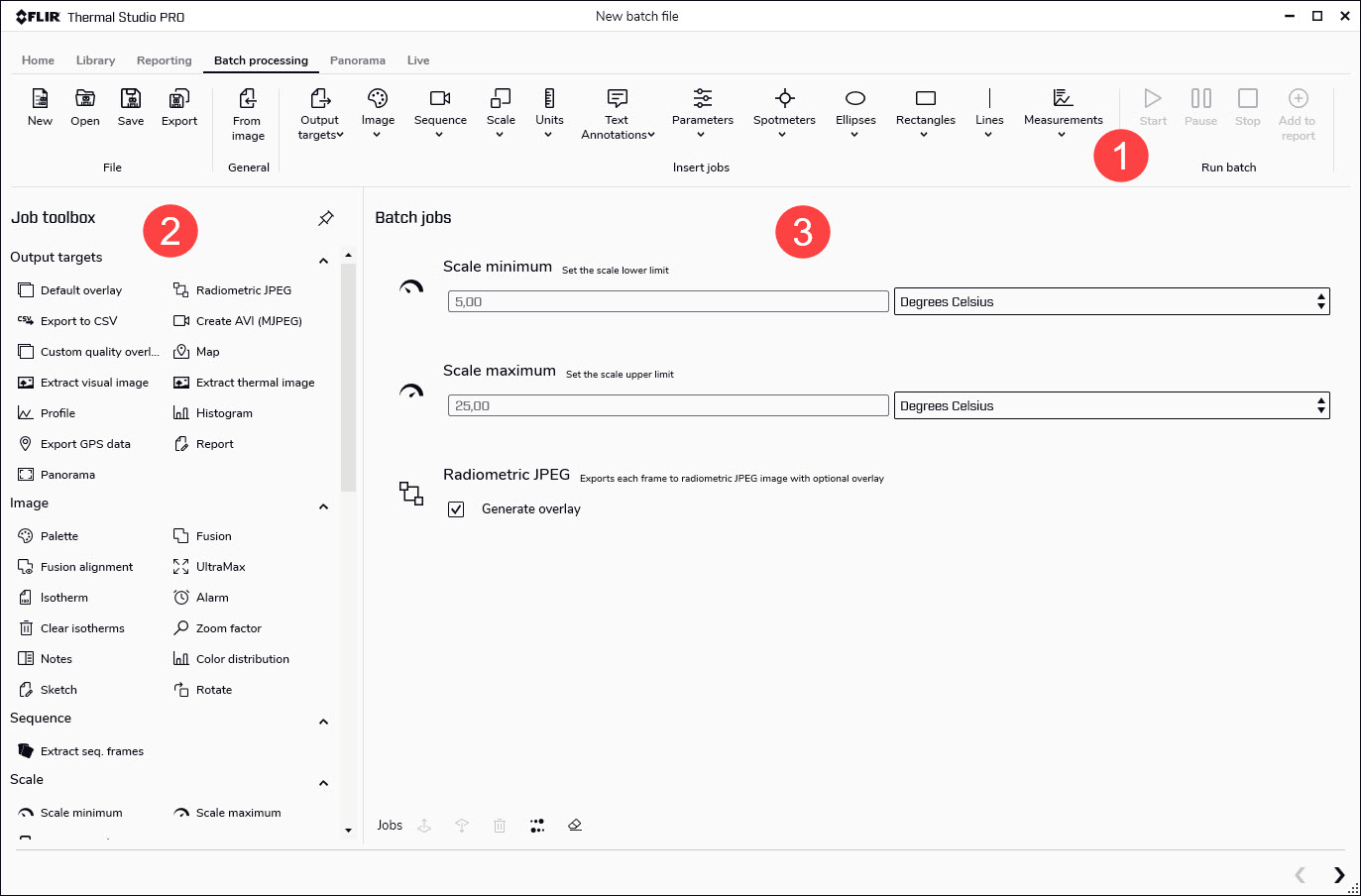
Toolbar
The toolbar includes options for creating, opening, saving, and exporting batches, and for selecting and adding available jobs to a batch. The jobs are grouped in menus, such as the Output targets, Image, and Parameters menus.
Job toolbox
The toolbox lists all the jobs that can be run in a batch. The jobs are grouped into categories, such as the Output targets, Image, and Parameters categories.
Batch jobs workspace
This is the workspace where you create the batch by adding jobs and setting values. As more jobs are added, a batch execution list is created.
A new job is normally added at the end of list. Use the icons at the bottom of the pane to move the jobs up or down the list, to reverse the execution order of the jobs, to remove jobs from the list, or to clear the list of all jobs.
All jobs can be selected from both the Insert jobs toolbar and from the Job toolbox.
Predefined batches
The FLIR Thermal Studio application comes with a set of predefined batches of jobs:
Create video from images.
Normalize temperature scale.
Convert to UltraMax.
The batches are accessed from the Home page.