User interface
In the FLIR Ignite Library in your browser, you can view, organize, search for, download, and share images uploaded from your FLIR Ignite enabled camera.
Library
This image shows what the user interface looks like when the FLIR Ignite Library is opened in your browser on a desktop computer.
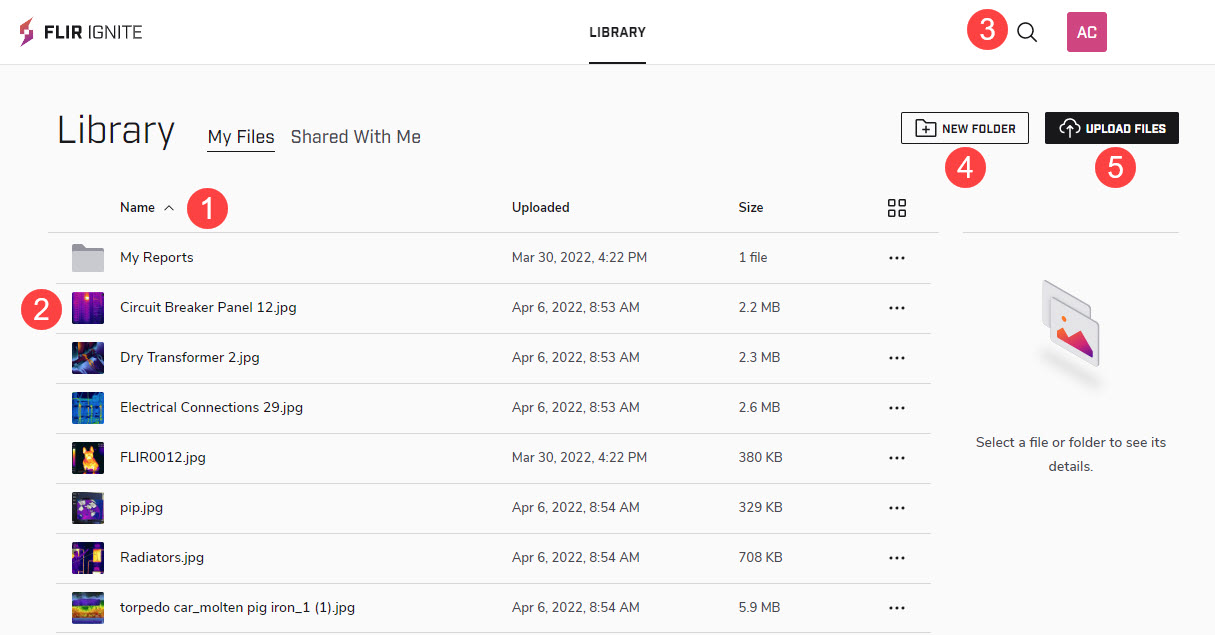
Folder/image name
Click the folder/image name to open the folder/image.
Folder/image row
Click the folder/image row to display folder/image information in the right pane.
Search
Click to search for an image or folder. You can search on file names, folder names, and any notes added to the images.
New folder
Click the button to create a new folder in the library.
Upload images
Click the button to upload files from your computer.
This image shows what the user interface looks like when you have selected an image by clicking the image row.
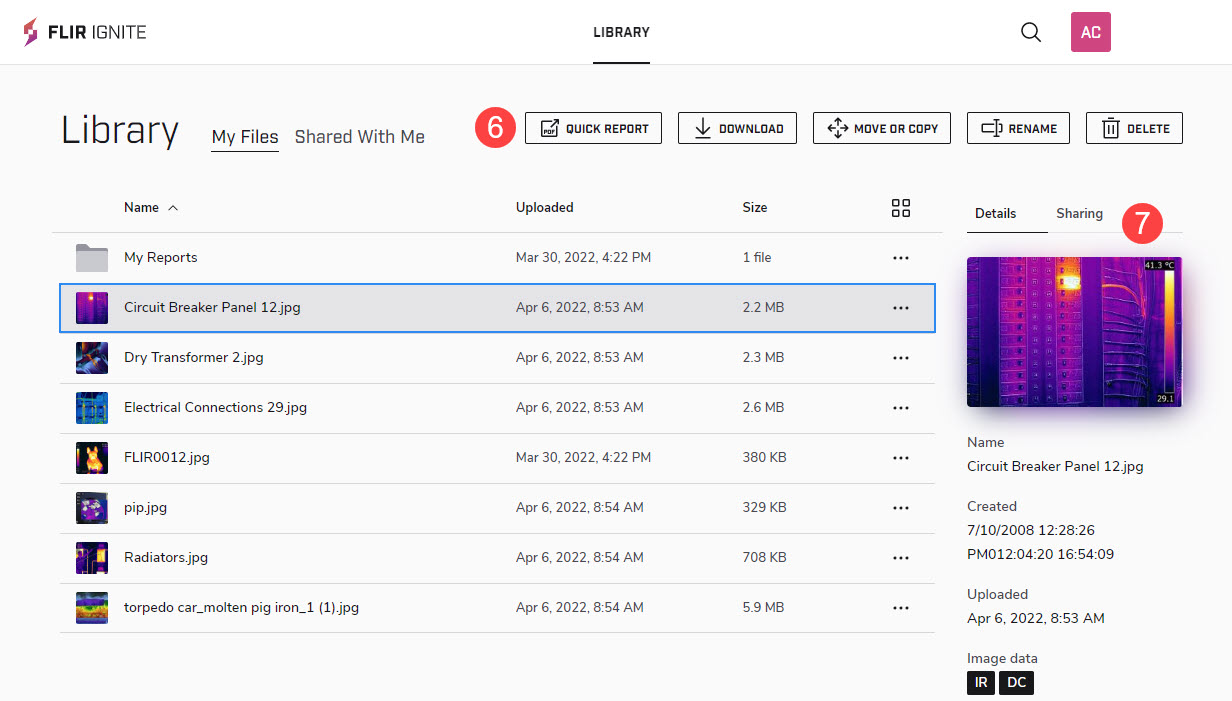
Buttons
Click a button to create a Quick report, download, move or copy, rename, or delete the selected image.
Image information
Click Details to view information about the image.
Click Sharing to view information about any shared links or to create a link for sharing.
This image shows what the user interface looks like when you have clicked an image file name.
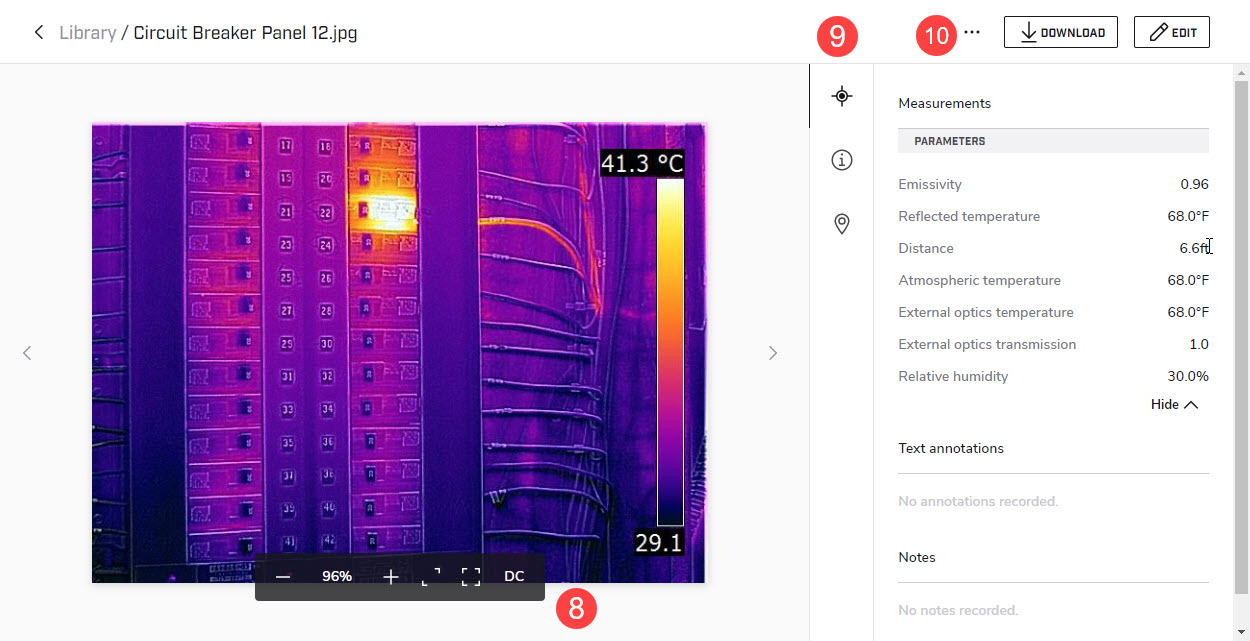
Image toolbar
The image toolbar includes options for zooming, full screen viewing, and toggling of IR/DC images.
Data toolbar
The data toolbar includes options for display of measurement data, image details, and location.
Menu
Click to display a menu where you can select to create a shareable link, create a Quick report, download, move or copy, rename, and delete the image.
Settings
Go to the Settings page to change settings for the user interface or to view, for example, information about your account and shared links.
You access the Settings page via the profile menu in the upper right corner.
Account
View information about the current storage capacity.
Select the units, language, and date format to be used in the user interface.
Sharing
View information about collaborative folders and shared links.
Profile
View and edit general information about your account.
Data & Security
Change your password.
Quick report
Upload a logotype to be used in your Quick reports, and make settings for where to include it. You can also set texts for the Header and Footer of your reports.