FLIR Ignite Sync
FLIR Ignite Sync is a PC–based (Windows 10) application that automatically syncs your FLIR Ignite Library with a sync folder on your computer.
You can add or rename images in your FLIR Ignite Library or in the sync folder on your computer and all of your changes will instantly be synced.
If you remove images from the sync folder on your computer, they will also be removed from your FLIR Ignite Library.
System requirements
For automatic sync to work, the following is required:
FLIR Ignite Sync must be installed on your Windows 10 computer.
FLIR Ignite Sync must be running on your computer.
You must have logged in to your FLIR Ignite account via FLIR Ignite Sync.
Your computer must be connected to internet.
Installation and setup
Go to https://ignite.flir.com/sync and download the FLIR Ignite Sync application.
To start the installation, double-click the downloaded executable file.
When the installation is completed, the application starts and the FLIR Ignite Sync icon appears in the taskbar.
If there is no icon, you can start FLIR Ignite Sync from the Start menu.
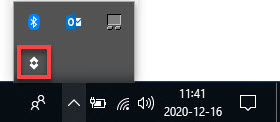
Click the
 icon to log in to your FLIR Ignite account,
accept the terms and conditions, and select the location of the sync
folder on your computer.
icon to log in to your FLIR Ignite account,
accept the terms and conditions, and select the location of the sync
folder on your computer.
Start application
Start the FLIR Ignite Sync application from the Start menu or by double-clicking the desktop icon.
Click the
icon in the taskbar and log in to your FLIR Ignite account.
When the application is running and you are logged in to your FLIR Ignite account, the FLIR Ignite Sync icon looks like this:  .
.
User interface
To display the user interface, click in the taskbar.
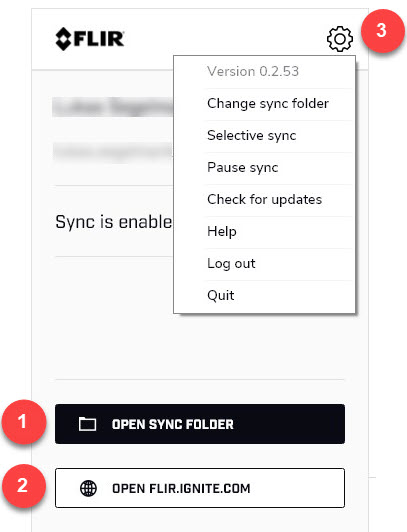
Click the button to open the sync folder on your computer.
Click the button to open your FLIR Ignite Library in a web browser.
Click the icon to open a menu.
Click Change sync folder to change the location of the sync folder.
Click Selective sync to select which folders to sync.
NoteYou can only sync your own folders, not collaboration folders that others have shared with you.
Click Pause sync to pause the syncing.
Click Check for updates to check for and install software updates.
Click Help to go to the FLIR Ignite online documentation web page.
Click Log out to log out from your FLIR Ignite account. This stops the syncing.
Click Quit to quit FLIR Ignite Sync. This stops the syncing.