User interface
Screen elements
General
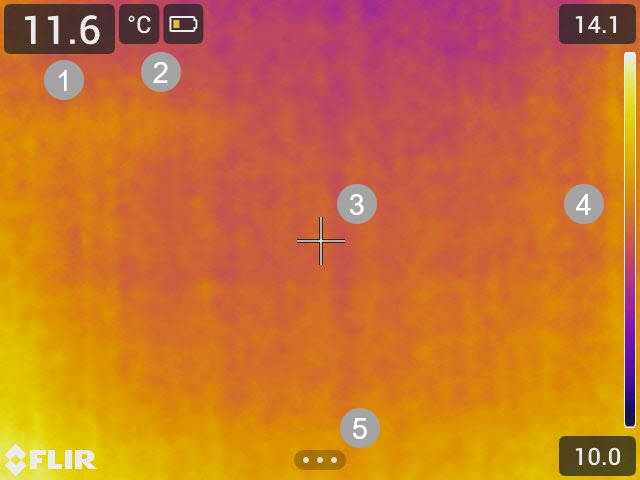
Result table
Status icons and indicators
Spotmeter
Temperature scale
Menu button
Status icons and indicators
 |
Battery level
|
 |
The available storage space in the camera memory is running low. |

 |
The camera is paired with a FLIR Ignite account. The camera is paired, but does not have contact with FLIR Ignite (no internet connection). |
Main toolbar
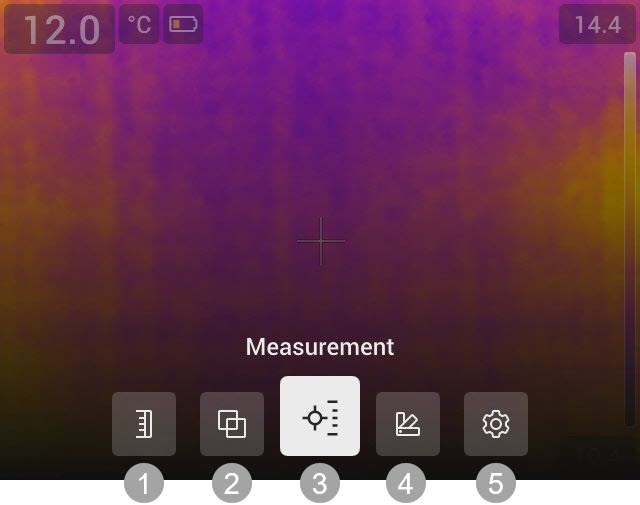
Temperature scale
Image mode
Measurement
Color
Settings
Navigation
To navigate the user interface, you can use the touch screen and/or the navigation pad and Back button.
To display the main toolbar, do one of the following:
Tap the menu button at the bottom of the screen.
Push the center of the navigation pad.
To navigate the toolbars, menus, and dialog boxes, and to change values in dialog boxes, push the navigation pad up/down or left/right.
To confirm changes and settings in menus and dialog boxes, push the center of the navigation pad.
To leave dialog boxes and to go back in the menu system, push the Back button.
Quick menu
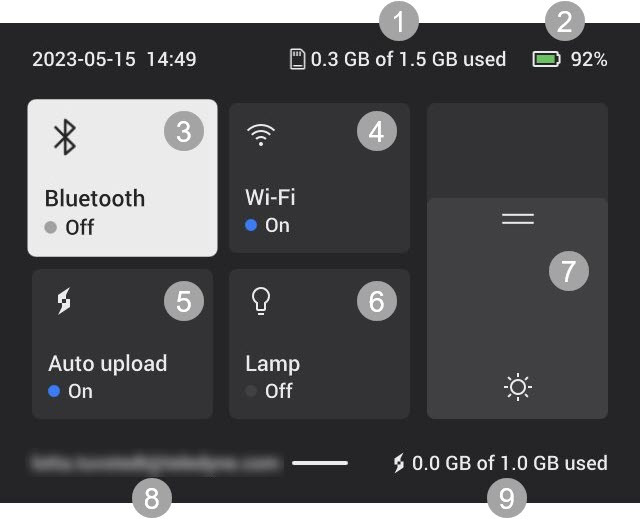
Storage status of the camera memory.
Battery level.
Enable/disable Bluetooth or open the Bluetooth settings menu. See also section Bluetooth.
Enable/disable Wi-Fi or open the Wi-Fi settings menu. See also section Wi-Fi.
Enable/disable automatic upload of images. See also section Automatic upload.
NoteIf the camera is not paired with a FLIR Ignite account, you will be prompted to sign in to FLIR Ignite before you can enable automatic upload.
Turn on/off the camera lamp.
Adjust the brightness of the screen.
The FLIR Ignite user account that the camera is paired with. For more information, see section Pair with FLIR Ignite.
Storage status of the FLIR Ignite account.
Navigation
To display the Quick menu, swipe down from the top of the screen.
To navigate the Quick menu by using the touch screen, do the following:
Tap to enable/disable a function.
Bluetooth and Wi-Fi: Tap and hold to open the settings menu.
Screen brightness: Tap the screen to adjust the screen brightness.
To navigate the Quick menu by using the navigation pad, do the following:
Push the navigation pad up/down or left/right to highlight a function.
Push the center of the navigation pad to enable/disable the highlighted function.
Bluetooth and Wi-Fi: Push and hold the center of the navigation pad to open the settings menu.
Screen brightness: Push the navigation pad up/down to adjust the screen brightness.
To close the Quick menu, push the Back button.