Image modes
The camera can capture thermal and visual images at the same time. By choosing the image mode, you select which type of image to display on the screen.
The camera supports the following image modes:
Thermal MSX (Multi Spectral Dynamic Imaging): An infrared image where the edges of the objects are enhanced with visual image details.
Thermal: An infrared image.
Picture in picture: An infrared image frame is displayed on top of the visual image.
Digital camera: The visual image captured by the digital camera.
For the Thermal MSX, Thermal, and Picture in picture modes, all thermal and visual information is stored when an image is saved. This means that you can edit the image later, in the camera image gallery or in a FLIR Thermography software, and select any of the image modes.
For the Digital camera image mode, a digital image with full resolution is stored when an image is saved. However, no thermal information is stored.
You can choose to turn off the digital camera. This can, for example, be required in restricted areas and in confidential situations. Select Settings > Save options & storage > Digital camera = Off. When the digital camera is off, only the image mode Thermal is enabled.
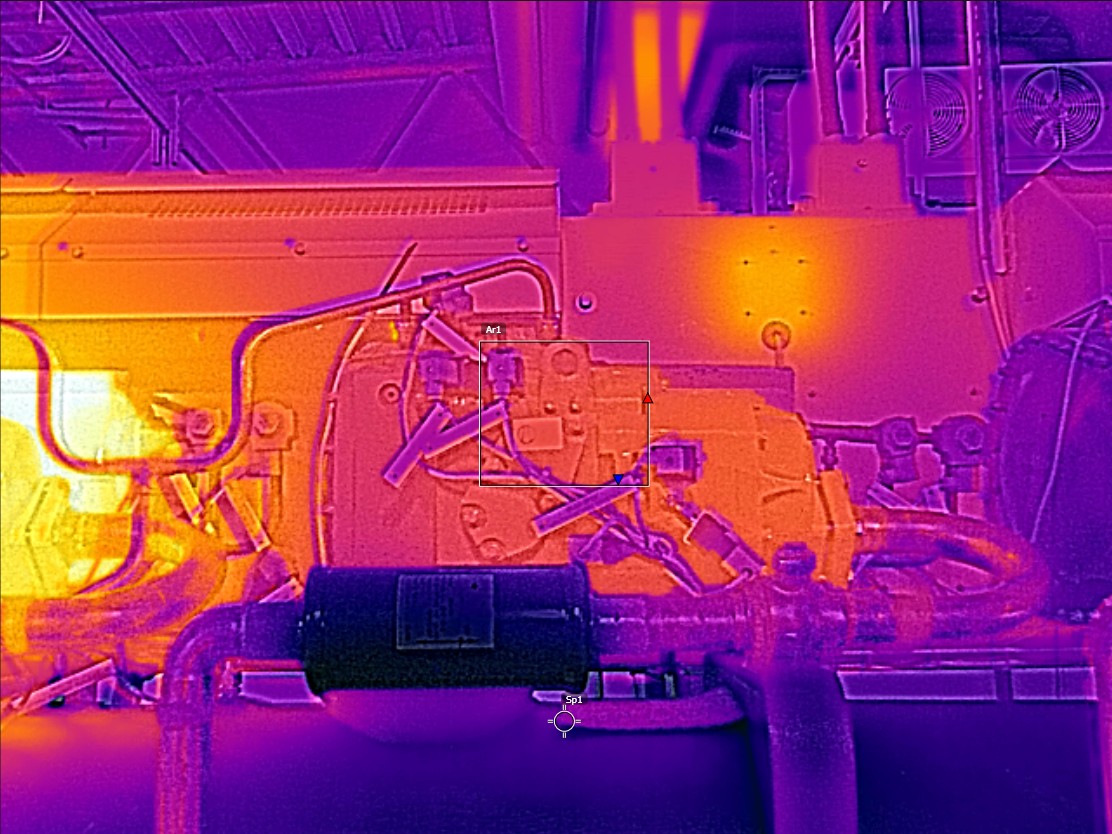
Thermal MSX |
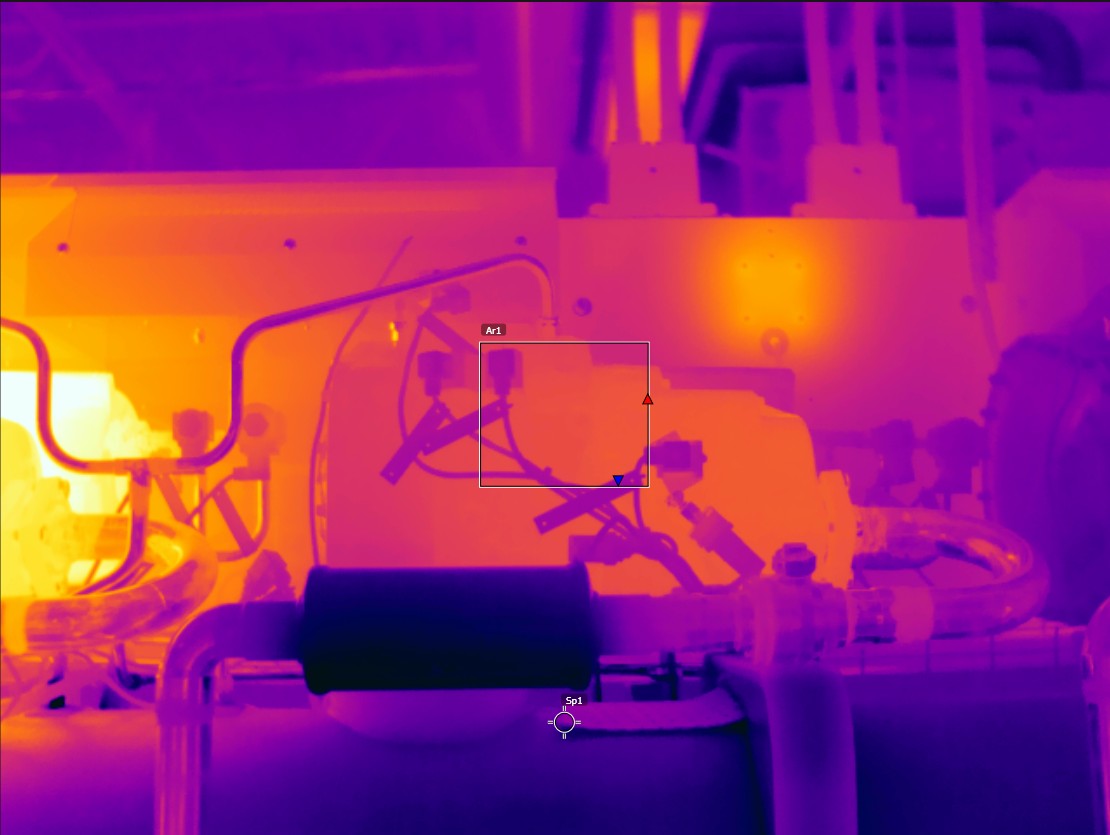
Thermal |
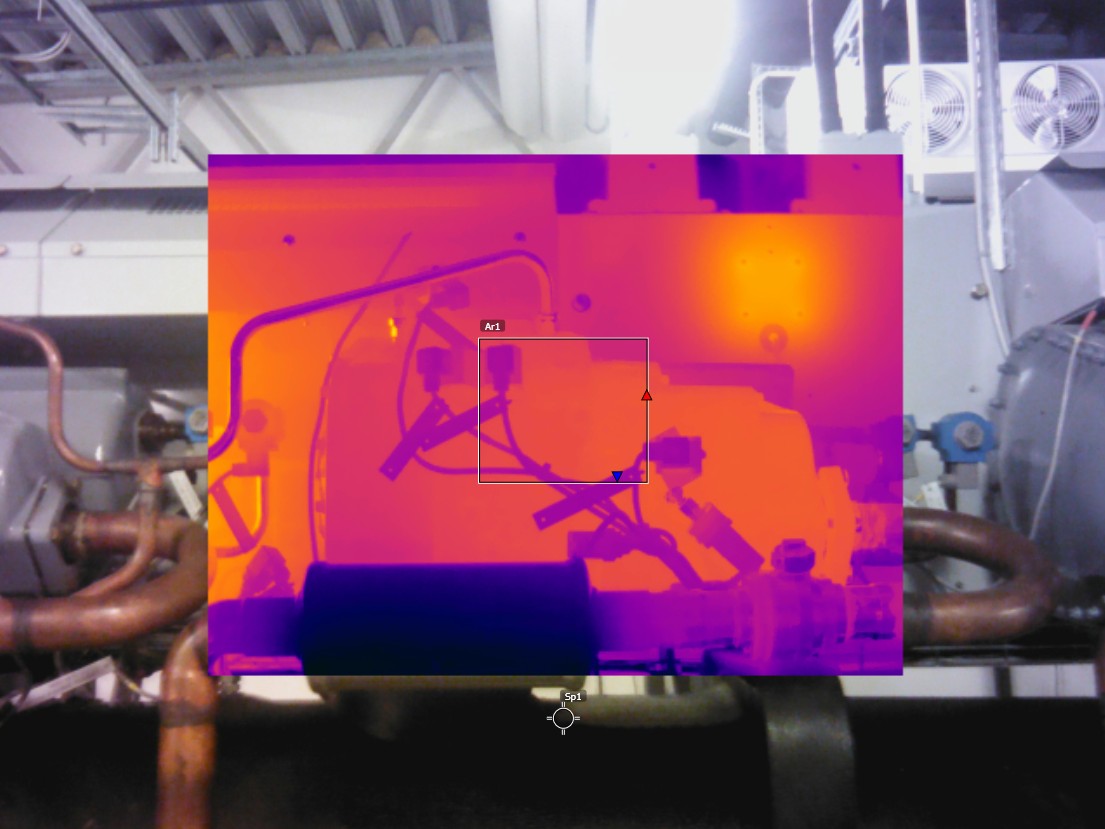
Picture in picture |
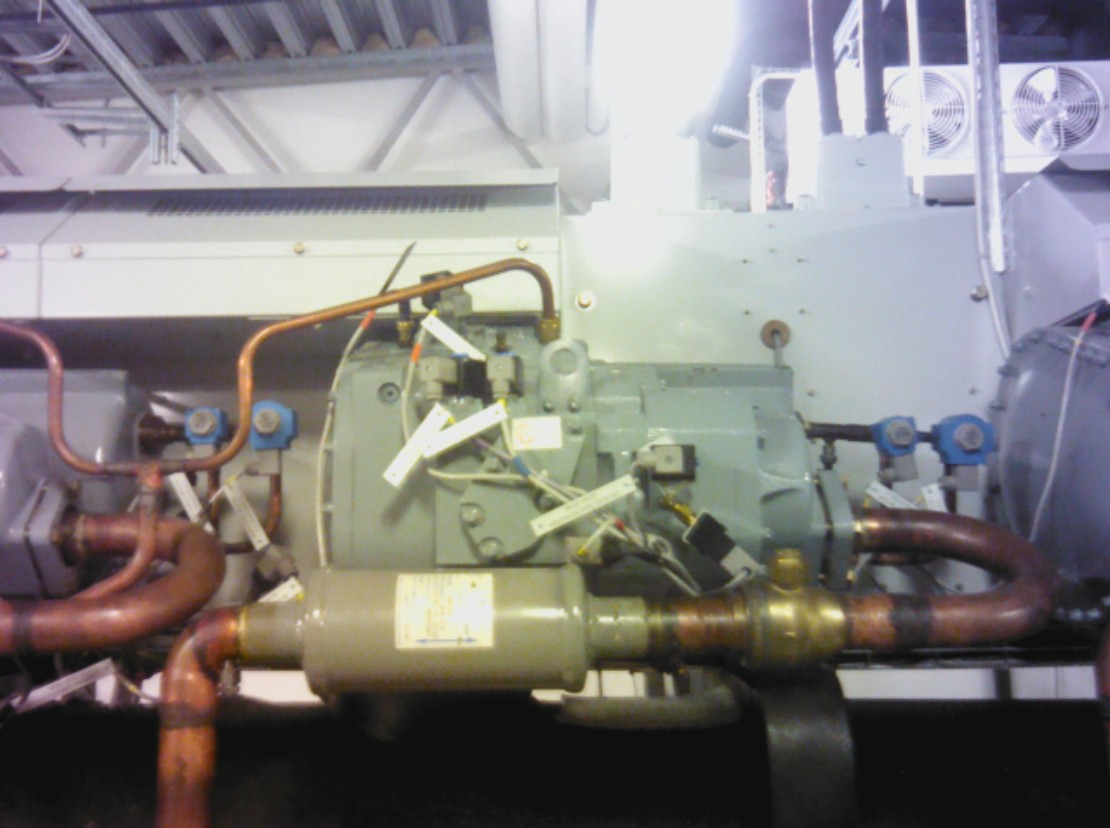
Digital camera |
Change image mode
To change the image mode, select Image mode on the main toolbar. This displays a toolbar where you can select the image mode.
Align the thermal and visual images
In Thermal MSX and Picture in picture modes, the camera displays a combination of thermal and visual images. When looking at an object close up or far away, you may need to adjust the distance setting in the camera to align the thermal and visual images.
To align the thermal and visual images, do the following:
Tap the screen. This displays a box with a distance in the upper right corner.
Tap the distance box. This displays a slider.
Tap the slider or push the navigation pad up/down to adjust the distance.
Move and resize the infrared image frame
If Picture in picture mode is selected, you can move and resize the infrared image frame.
Tap a corner of the infrared image frame. The frame is now displayed with handles in the center and in the corners.
To move the frame, tap and hold the center handle and drag the frame.
To resize the frame, tap and hold one of the corner handles and drag the corner of the frame.