Measuring temperatures
Basic steps to temperature measurements
Select a temperature range that matches the expected temperature of the object you are inspecting.
Adjusting the temperature scale manually can make it possible to detect anomalies and smaller temperature differences in the part of the image of interest.
Selecting a different color palette can make it easier to analyze the image.
For accurate temperature measurements, it is important to use appropriate measurement parameters.
For very accurate results, wait 5 minutes after you have started the camera before measuring a temperature.
Measurement tools
To measure a temperature, you can use different measurement tools, e.g., a spot or a box.
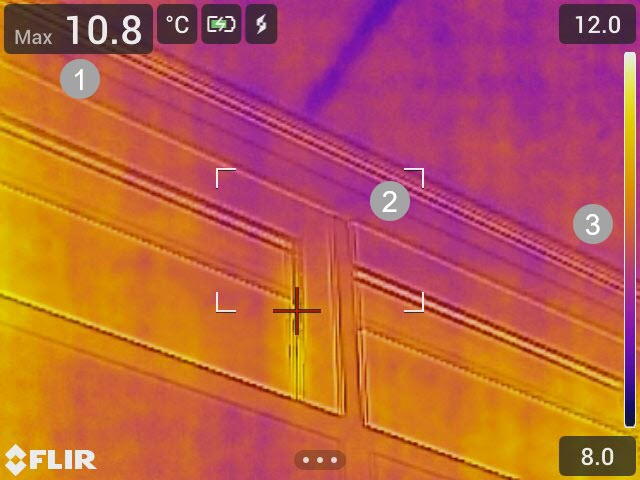
Result table
Hot spot box
Temperature scale
Add and remove a tool
On the main toolbar, select Measurement. This displays a toolbar, where you can add the following tools or remove all tools:
Center spot
Hot spot box
Cold spot box
Hot spot - Spot
Hot spot - Temp (Delta T)
Move a spot
Activate edit mode by tapping the spot on the screen. The spot is now displayed with a handle.
Push the navigation pad or tap the menu button. This displays a toolbar.
On the toolbar, do one or more of the following:
Select Move and push the navigation pad. Push the navigation pad up/down and left/right to move the tool.
You can also tap and drag the spot.
Select Center to center the spot on the screen.
To exit edit mode, do one of the following:
Push the navigation pad and select Done.
Tap the screen outside the tool.
Move and resize a box
Activate edit mode by tapping one of the corners of the box. The box is now displayed with handles in the center and in the corners.
Push the navigation pad or tap the menu button. This displays a toolbar.
Select Move/resize. This displays a toolbar, where you can do one or more of the following:
Select Resize and push the navigation pad. Push the navigation pad up/down and left/right to resize the tool.
You can also tap and hold one of the corner handles and drag the corner to resize the tool.
Select Move and push the navigation pad. Push the navigation pad up/down and left/right to move the tool.
You can also tap the middle handle and drag to move the tool.
Select Center to center the box on the screen.
To exit edit mode, do one of the following:
Push the navigation pad and select Done.
Tap the screen outside the tool.
Difference calculations (delta)
A difference calculation gives the delta between the maximum temperature in a box and a fixed-temperature reference or a spot temperature.
The delta, box maximum, and reference/spot temperatures are displayed in the result table.
Delta T — Hot spot - Temp
The Delta T function calculates the difference between the maximum temperature in a box and a fixed-temperature reference.
To use the Delta T function, do the following:
On the main toolbar, select Measurement > Hot spot - Temp. This displays a dialog box with the reference temperature.
To change the reference temperature, push the navigation pad up/down. To confirm, push the center of the navigation pad.
Hot spot - Spot
The Hot spot - Spot function calculates the difference between the maximum temperature in a box and a spot temperature.
To use this function, select Measurement > Hot spot - Spot on the main toolbar.
Display box values in the result table
For the box tool, you can set the camera to display the maximum, minimum, and average values in the result table.
To display values in the result table, do the following:
Activate edit mode by tapping one of the corners of the box. The box is now displayed with handles in the center and in the corners.
Push the navigation pad or tap the menu button. This displays a toolbar.
Select Max/Min/Avg. This displays a toolbar, where you can enable/disable one or more of the following:
Max: Display the maximum value.
Min: Display the minimum value.
Avg: Display the average value.
Max & min markers: Display the maximum and minimum markers (hot/cold spots).
To toggle between enabled/disabled, push the navigation pad or tap the toolbar button.
When completed, do one of the following:
Push the Back button. On the toolbar, select Done.
Tap the screen outside the tool.
Temperature range
The camera is calibrated for different temperature ranges. For accurate temperature measurements, you must select a temperature range that matches the expected temperature of the object you are inspecting.
To change the temperature range, select Settings > Camera temperature range. This displays a menu where you can select the temperature range.
Thermal image adjustment
General
Thermal image adjustment, or thermal tuning, means adjusting the temperature scale of a thermal image, in order to maximize the brightness and contrast in the image.
In automatic mode, the camera continuously adjusts the image for the best presentation. The camera selects the coldest and warmest temperatures in the image as the lower and upper limits of the temperature scale. The colors are then distributed over that temperature interval (histogram color distribution).
In manual mode, you can adjust the temperature scale to values close to the temperature of a specific object in the image. The colors are distributed evenly from the lowest to the highest temperature (linear color distribution).
When to use manual mode
Here are two infrared images of a building. In the left image, which is auto-adjusted, the large temperature span between the clear sky and the heated building makes a correct analysis difficult. You can analyze the building in more detail if you change the temperature scale to values close to the temperature of the building.
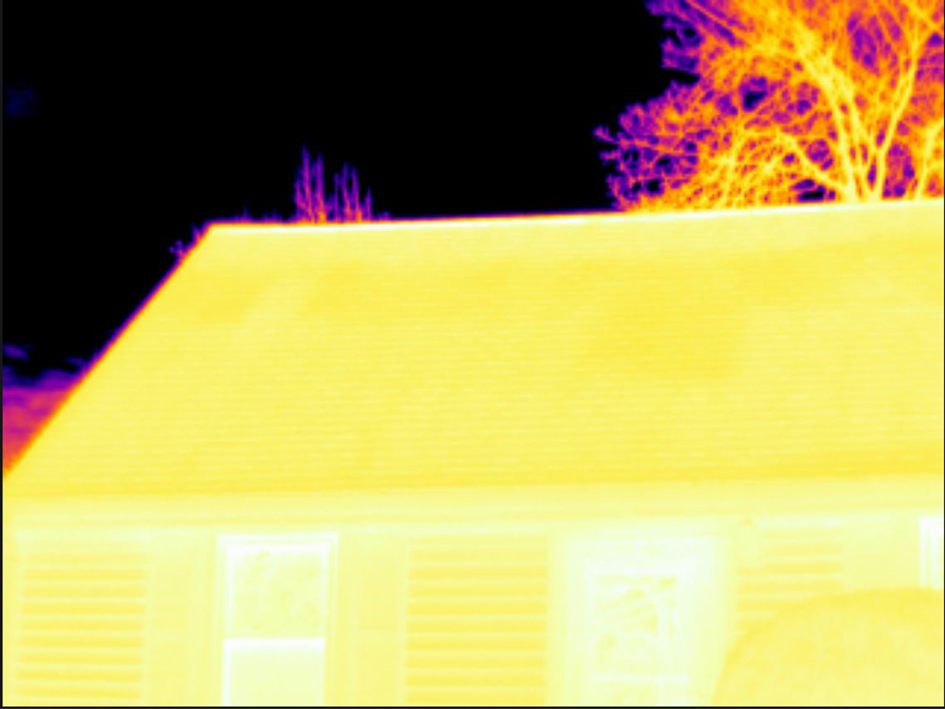
Automatic |
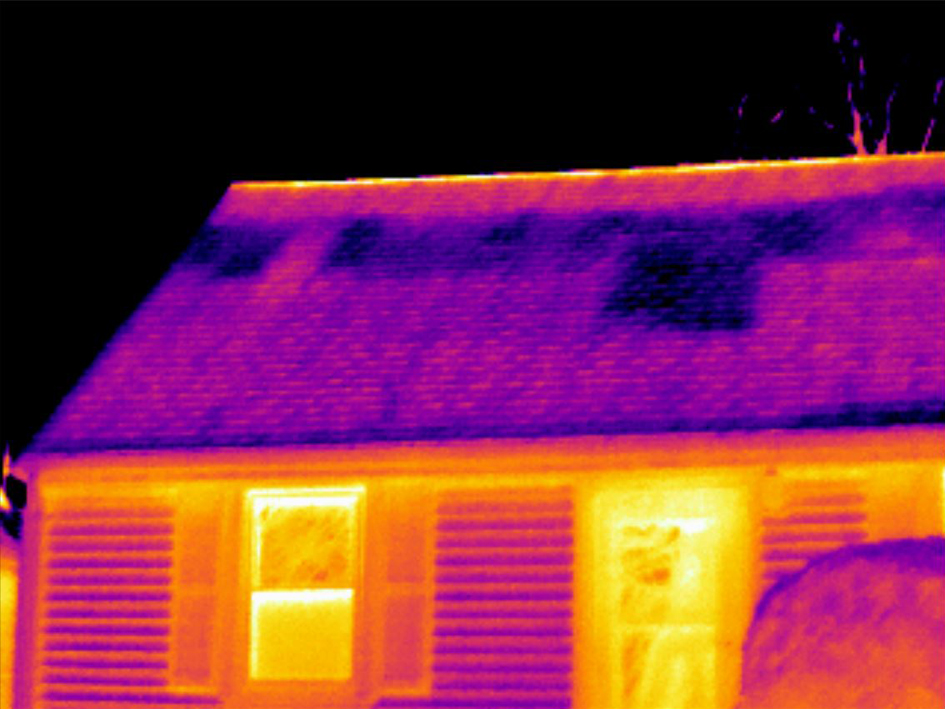
Manual |
Here are two infrared images of an isolator in a power line. To make it easier to analyze the temperature variations in the isolator, the temperature scale in the right image has been changed to values close to the temperature of the isolator.
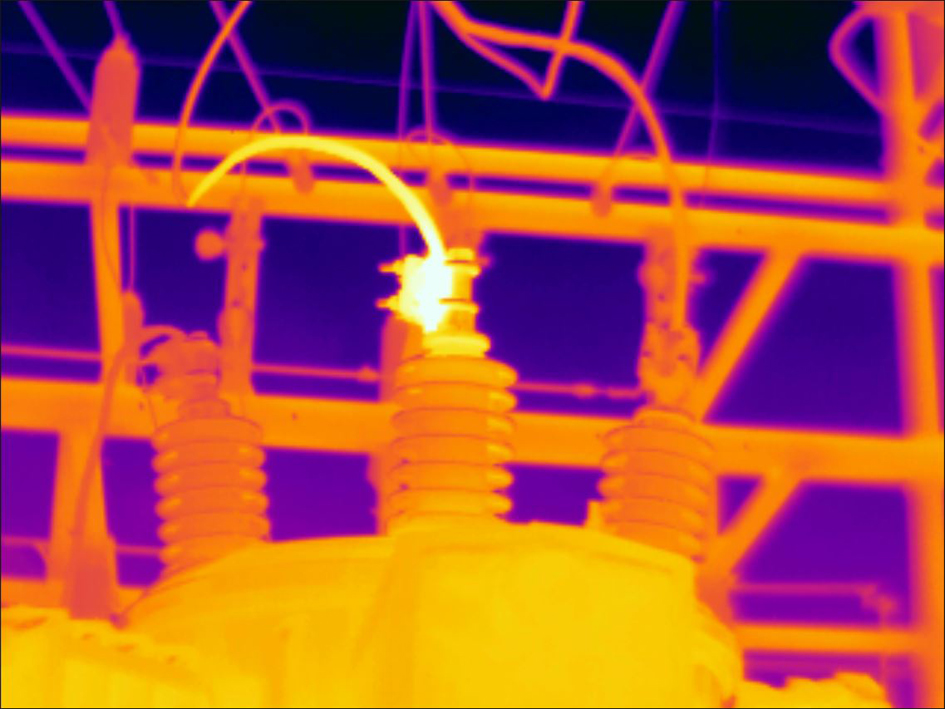
Automatic |
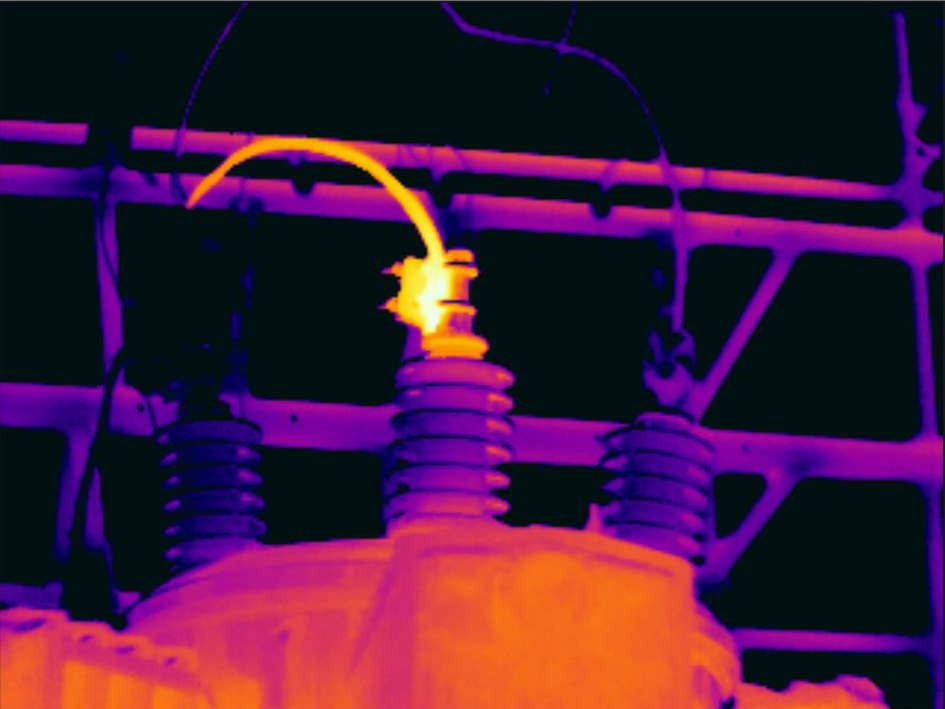
Manual |
Change mode
To change the image adjustment mode, select Temperature scale on the main toolbar. Then select Auto or Manual.
Manual adjustment by touching the screen
When manual mode is active, an adjustment wheel is displayed to the right of the temperature scale.
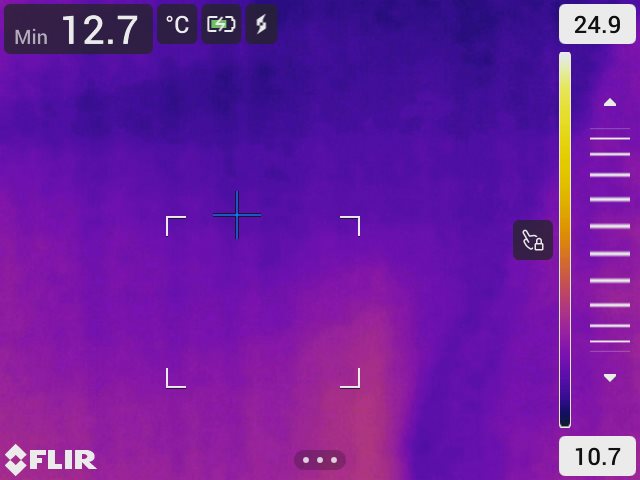
Figure 1. Manual adjustment mode active
To manually adjust the image, do the following:
To enter manual adjustment mode, select Temperature scale > Manual on the main toolbar.
To simultaneously change the maximum and minimum limits of the temperature scale, place your finger on the screen and move it up/down.
To change the maximum or minimum limit, do the following:
Tap the maximum or minimum temperature.
Place your finger on the screen and move it up/down to change the value of the highlighted temperature.
1-Touch auto-adjustment
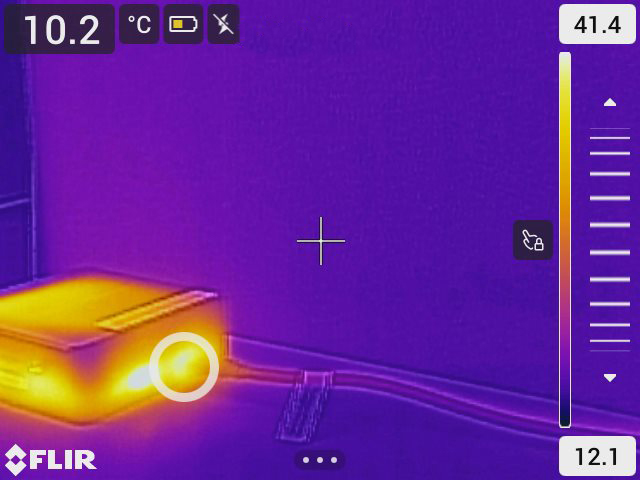
In manual mode, you can auto-adjust the image by touching the screen. The image will be auto-adjusted based on the thermal content of the area around the touched point. The top and bottom levels in the temperature scale will be set to the maximum and minimum temperatures in that area.
By using the color information only for the relevant temperatures, you will get more details in your area of interest.
Lock touch screen
When you have adjusted the image to levels that allow you to study your area of interest, you can lock the touch screen to prevent further unintentional adjustments.
To lock/unlock the screen, tap the icon to the left of the temperature scale.
If you switch to automatic mode, the screen automatically unlocks and your manual adjustments are lost.
Manual adjustment using the navigation pad
Manual adjustment modes
There are two different settings for the manual adjustment mode (applicable for the navigation pad only):
Level, Max, Min: With this setting, you can manually adjust the level with the navigation pad. You can also change the upper and lower temperatures individually.
Level, Span: With this setting, you can manually adjust the level and span with the navigation pad.
To change the type of manual adjustment mode, select Settings > Device settings > User interface options > Manual adjustment mode.
Manual adjustment in Level, Max, Min mode
To enter manual adjustment mode, select Temperature scale > Manual on the main toolbar.
To simultaneously change the temperature scale minimum and maximum limits, push the navigation pad up/down.
To change the minimum or maximum limit, do the following:
Push the navigation pad left/right to select (highlight) the maximum or minimum temperature.
Push the navigation pad up/down to change the value of the highlighted temperature.
Manual adjustment in Level, Span mode
To enter manual adjustment mode, select Temperature scale > Manual on the main toolbar.
Push the navigation pad up/down to increase/decrease the level.
Push the navigation pad left/right to increase/decrease the span.
Color palettes
The camera supports a number of different color palettes. Frequently used palettes include the iron, gray, and rainbow palettes.
The iron palette is intuitive and also easy to understand for those without much experience in thermography. It offers a good balance between geometric and thermal resolution.
Gray tones are particularly suited to resolving small geometric details, but are less suited to displaying small differences in temperature.
The rainbow palette is more colorful and alternates between light and dark colors. This results in greater contrast, but this can lead to a noisy image for objects with different surfaces or many temperatures.
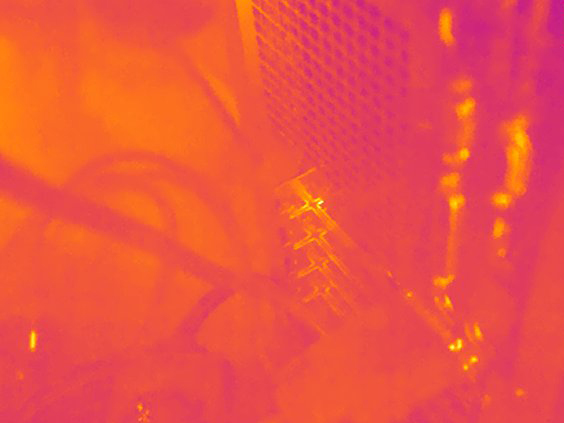
Iron |
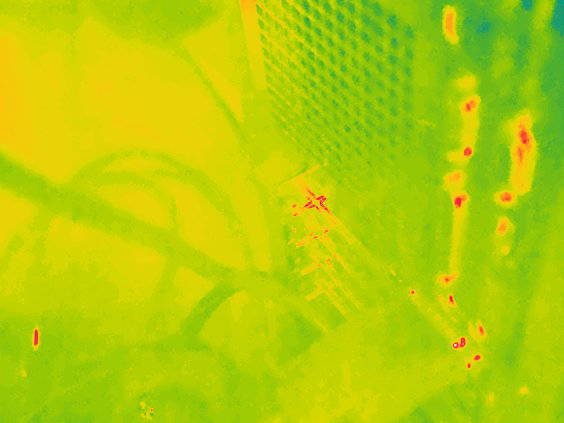
Rainbow |
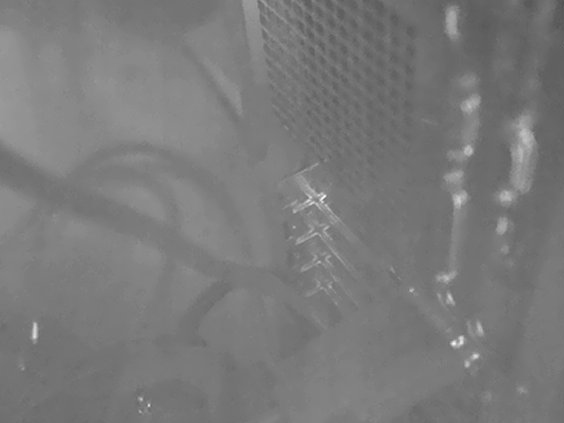
Gray (White hot) |
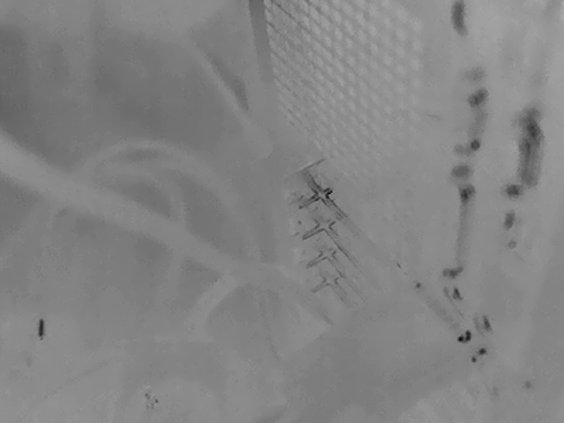
Gray (Black hot) |
Change the color palette
On the main toolbar, select Color. This displays a toolbar where you can select a color palette.
Color alarms and isotherms
By using color alarms (isotherms), anomalies can easily be discovered in an infrared image. The isotherm command applies a contrasting color to all pixels with a temperature above or below the specified temperature level.
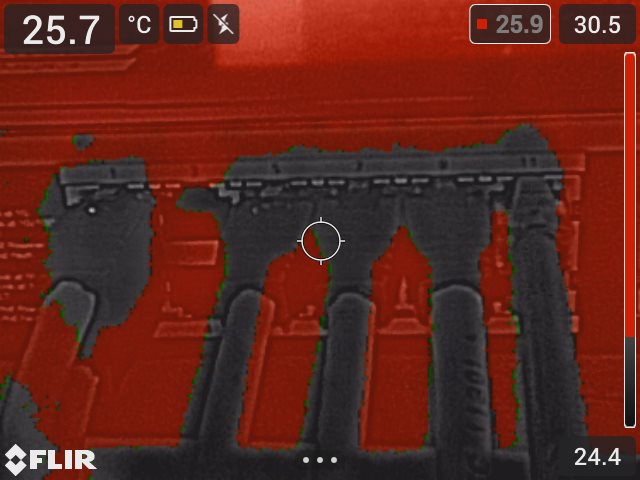
Above alarm: Highlights all pixels with a temperature above the specified temperature level. |
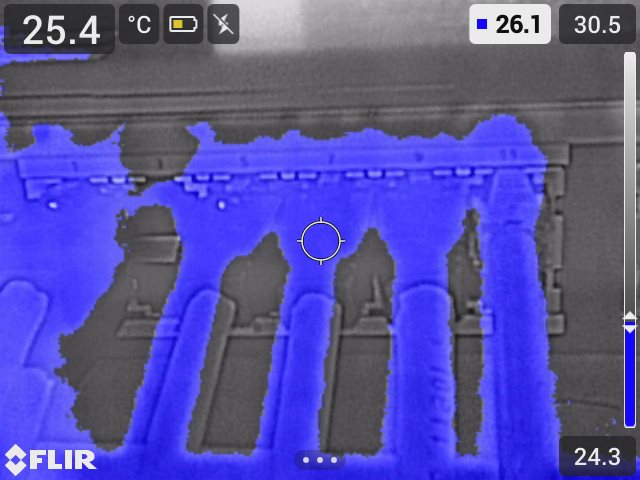
Below alarm: Highlights all pixels with a temperature below the specified temperature level. |
Set up a color alarm
On the main toolbar, select Color. This displays a toolbar where you can select the Above alarm or Below alarm.
The threshold temperature is displayed in the upper right corner of the live image.
To change the threshold temperature, push the navigation pad up/down. To lock/unlock the setting, tap the threshold temperature button. The button background is black when the setting is locked and white when unlocked.
Measurement parameters
For accurate temperature measurements, it is important to use appropriate measurement parameters:
Emissivity: The emissivity determines how much of the radiation originates from the object as opposed to being reflected by it.
Reflected temperature: This parameter is used to compensate for the radiation from the surroundings reflected by the object into the camera.
Relative humidity: The relative humidity of the air between the camera and the object of interest.
Atmospheric temperature: The temperature of the air between the camera and the object of interest.
Distance: The distance between the camera and the object of interest.
During normal operation there is typically no need to change the default measurement parameters, see section Recommended values.
Setting measurement parameters
Emissivity is the most important measurement parameter to set correctly. If the Emissivity is set to a low value, the Reflected temperature also becomes important. The parameters Relative humidity, Atmospheric temperature, and Distance are relevant for longer distances.
To set the measurement parameters, do the following:
On the main toolbar, select Settings > Measurement parameters.
Select the measurement parameter you want to change.
Select the appropriate parameter setting.
Recommended values
If you are unsure about the measurement parameter values, the following are recommended:
|
Emissivity |
0.95 |
|
Reflected temperature |
20°C (69°F) |
|
Relative humidity |
50% |
|
Atmospheric temperature |
20°C (69°F) |
|
Distance |
1 m (3.3 ft.) |