Camera user interface
Screen elements
General
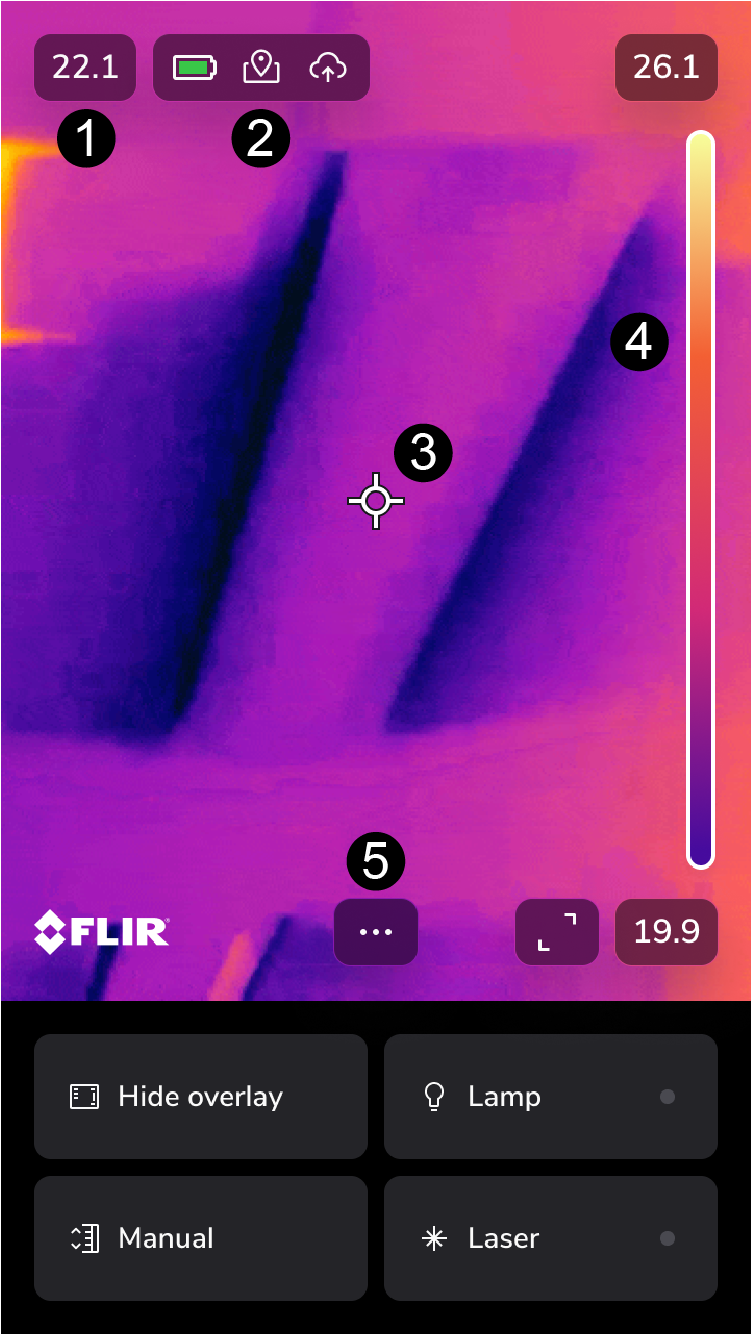
Result table
Status icons and indicators
Spotmeter
Temperature scale
Menu button
Full screen
Status icons and indicators
 |
Battery level
|
 |
Charging |
 |
The available storage space in the camera memory is running low. |
 |
GPS |
 |
Connected with a cloud account |
 |
External infrared window compensation is enabled. |
Main toolbar
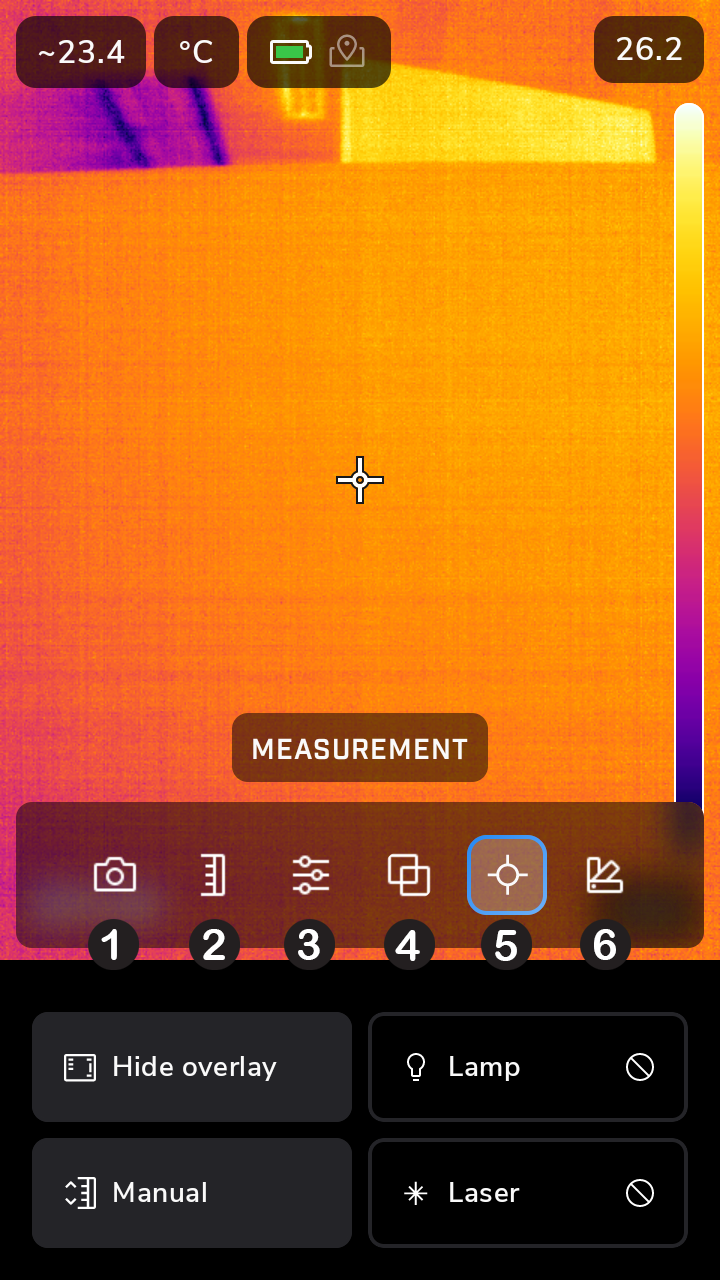
Recording mode: still image/video
Image adjustment: auto/manual
Parameters
Camera mode
Measurement
Color
Navigation keypad
To navigate the user interface, you can use the touch screen and/or the navigation keypad and Back button.
To display the main toolbar, push the three dots or the center of the navigation keypad.
To navigate the toolbars, menus, and dialog boxes, and to change values in dialog boxes, tap the navigation keypad up/down or left/right.
To confirm changes and settings in menus and dialog boxes, push the center of the navigation keypad or on the screen outside the toolbar.
To leave the dialog boxes and to go back in the menu system, push the Back button or tap the center of the navigation pad.
Screen lock and passcode
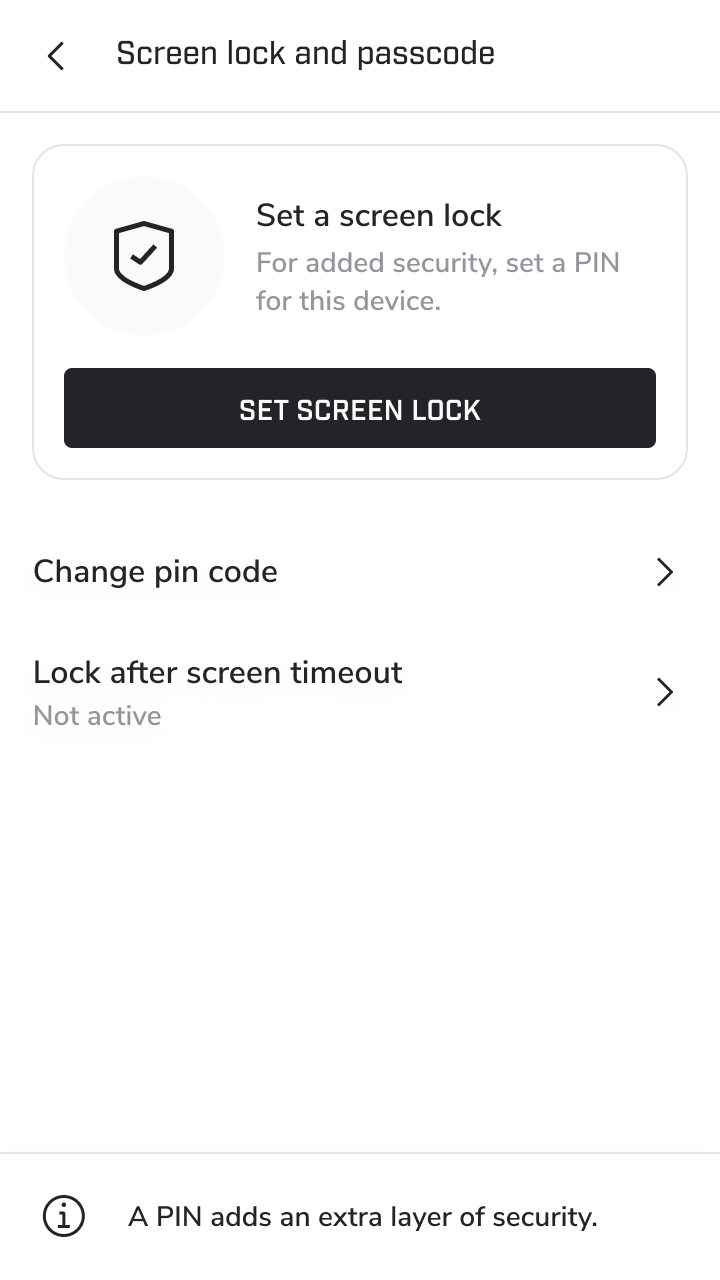
To secure the camera, it is possible to enable a screen lock and password. Do this in the onboarding or at any time later.