Measuring temperatures
You can measure a temperature using a spotmeter or a box. The measured temperatures are displayed in the result table on the screen.
With a spotmeter, the camera measures the temperature at the position of the spotmeter.
With a box, the camera detects the hottest/coldest spot within the box area and measures its temperature.
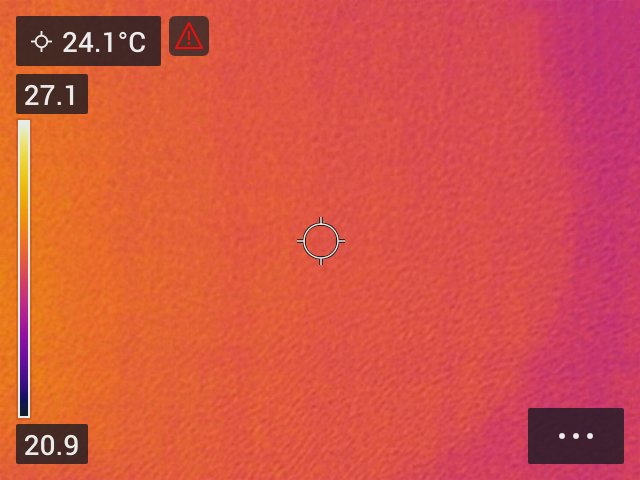
For accurate temperature measurements, you may need to change the measurement parameters. See section Changing the measurement parameters.
Adding/removing measurement tools
Tap the menu button
 .
.Tap Measurement
 .
.Do one or more of the following:
Tap
to add/remove a spotmeter.Tap
 to add/remove a hot spot box.
Tap
 to add/remove a cold spot box.
Moving the spotmeter
Tap the spotmeter. The tool is now displayed with a handle.
Tap and hold the spotmeter and drag it to a new position..
Moving and resizing the box
Tap one of the corners of the box. The tool is now displayed with handles.
To move the box, tap and hold the center handle and drag the box to a new position.
To resize the box, tap and hold one of the corner handles and drag it to a new position.
Changing the measurement parameters
For accurate temperature measurements, it is important to use appropriate measurement parameters:
Emissivity: The emissivity determines how much of the radiation originates from the object as opposed to being reflected by it.
Reflected temperature: This parameter is used to compensate for the radiation from the surroundings reflected by the object into the camera.
Relative humidity: The relative humidity of the air between the camera and the object of interest.
Atmospheric temperature: The temperature of the air between the camera and the object of interest.
Distance: The distance between the camera and the object of interest.
During normal operation there is typically no need to change the default measurement parameters, see section Recommended values.
Setting measurement parameters
Emissivity is the most important measurement parameter to set correctly. If the Emissivity is set to a low value, the Reflected temperature also becomes important. The parameters Relative humidity, Atmospheric temperature, and Distance are relevant for longer distances.
To set the measurement parameters, do the following:
Tap the Settings button
 .
.Tap Measurement parameters.
Tap the measurement parameter you want to change.
Select the appropriate parameter setting.
Recommended values
If you are unsure about the measurement parameter values, the following are recommended:
|
Emissivity |
0.95 |
|
Reflected temperature |
20°C (69°F) |
|
Relative humidity |
50% |
|
Atmospheric temperature |
20°C (69°F) |
|
Distance |
1 m (3.3 ft.) |
Color alarms and isotherms
Color alarms does not apply for C3-X and C5.
By using color alarms (isotherms), anomalies can easily be discovered in an infrared image. The isotherm command applies a contrasting color to all pixels with a temperature above or below the specified temperature level.
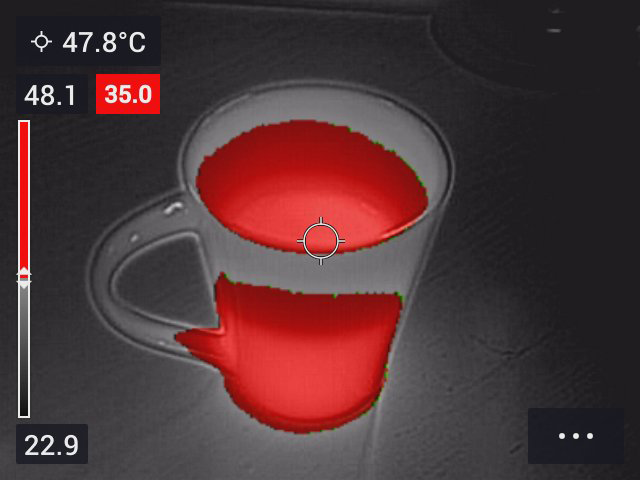
Above alarm: Highlights all pixels with a temperature above the specified temperature level. |
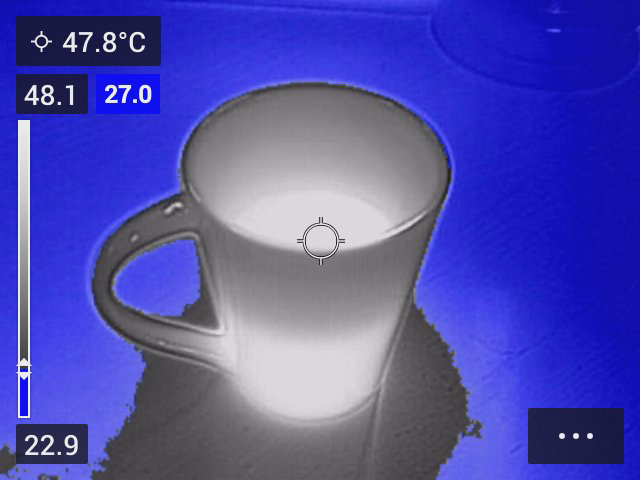
Below alarm: Highlights all pixels with a temperature below the specified temperature level. |
Set up a color alarm
On the main toolbar, select Color. This displays a toolbar where you can select the Above alarm or Below alarm.
The threshold temperature is displayed in the upper right corner of the live image.
To change the threshold temperature, push the navigation pad up/down. To lock/unlock the setting, tap the threshold temperature button. The button background is black when the setting is locked and white when unlocked.