Insights
In Insights, you get an overview of which assets have been inspected, which are OK, which need to be addressed and which are critical based on the specified condition. You can keep track of the condition of the assets at all levels.
A user can view the Insights at the levels allowed by their role, meaning that users with the Organizational roles Administrator, Participant, Inspection contributor and Observer will have permission to see Insights at the Organizational, Workspace, and Site levels.
For users that have the Site roles Administrator, Participant, Inspection contributor and Observer will have permission to see Insights about the site(s) they have an assigned role on.
Organization level - understand the condition of all workspaces in the organization.
Workspace level- understand the condition of all sites in the workspace.
Site level - understand a site’s condition including the performance of inspections.
How to use Insights
Insight on site level
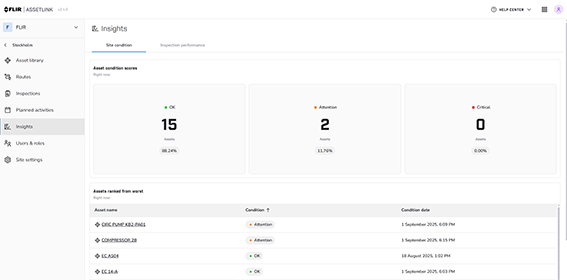
Figure 1.
When an complete inspection is Approved, see Approve inspection, it appears in Insight. Users with a Site role see an overview of the site and assets they have access to, how they are being performed, whether they are completed on time or if they are overdue, etc.
On the Site page there are two tabs, Site condition and Inspection performance:
Site condition shows Asset condition scores and Asset ranked from worst.
Asset condition scores, lists all assets and their condition.
Asset ranked from worst, lists all assets from worst to best. The older the condition score, the further down the list they are placed.
Inspection performance shows Performed inspections, Completed and overdue activities, and Overdue, uncompleted activities.
Performed inspections, lists all inspections that have been performed on your site.
Completed and overdue activities, shows all inspections on your site, whether completed or not, in both numbers and percentages.
Overdue, uncompleted activities, showing overdue inspections that have not been performed.
Insight on organization level
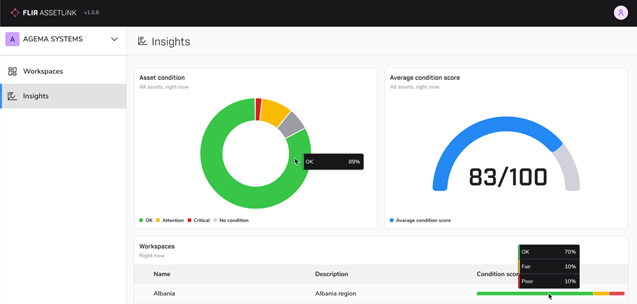
Figure 2.
In Insights, as an Organization admin, you get an overview of all workspaces, connected to your organization. There are three groups:
Asset condition scores, give you a simple overview of your asset's condition in a donut chart.
Average condition scores, will show an average condition score of all assets in a semicircle diagram.
The asset's condition is calculated when an inspection is approved by a user, see 7.2 Approve inspection. If there are multiple inspection points on an asset, the worst inspection point is mapped to the asset's condition score range to ensure it is not overlooked. The mapped inspection point generates the asset's condition. The asset's score range can be customized on the Condition score page in the Organization settings, see Condition scores.
Workspaces, shows the condition status of each workspace. There is also the ability to click on a workspace to see the condition status of all the sites located in the workspace. Click on a site to see the condition score for that specific site.