Camera installation
The accessory T300321ACC is listed separately. This instruction refers to the wall mount bracket and is provided for installer information only.
Two-ball mounting bracket kit
The Two-ball wall mount bracket kit is the compatible accessory for mounting the A40, A50, and A70 cameras. The two independent ball joints provide 360° pan and ±90° tilt adjustment, allowing the camera field of view to be aimed precisely after the bracket is secured to the mounting surface. Both ball clamps are tightened independently after aiming.
Bracket kit content
|
Item |
Description |
|
Two-ball mounting bracket |
Aluminum alloy, upper arm, lower arm, two ball joints. |
|
Lower mounting plate |
Fixed surface attachment plate with slot holes. |
|
Upper mounting plate |
Camera interface plate matches camera mounting pattern. |
|
Fastener kit |
Anchor screws, washers, M3/M4 camera-to-plate screws. |
Mounting instructions
To install the bracket, follow these steps. Step 1–3 must be made before connecting power or network cables.
Prepare the mounting surface.
Select a location that gives a clear view of the protected area.
The surface shall be rigid and at least 50 mm (2 in) thick.
Drill holes according to the plate, diameter ⌀ 9.5 mm (3/8 in), depth 40 mm (1½ in). Adjust for local wall material and anchor type.
Insert expansion anchors into the drilled holes.
If cables are to be run through the wall, drill a hole for the cable of the appropriate size.
Secure the lower mounting plate.
Route the Ethernet cable and I/O pigtail before attaching the plate.
Position the lower mounting plate over the anchors. Check that it is level before tightening it.
Tighten the anchor fasteners securely using standard hand tools. Do not overtighten, as this may damage the plate or mounting surface.
CAUTIONUse only fasteners supplied with the bracket kit or fasteners approved by Flir.
Attach the upper plate to the camera.
Attach the upper mounting plate to the camera, use the supplied M3/M4 camera-to-plate screws.
Maximum screw lengths:
8 mm (0.31 in) for 10-32 UNF insert.
7 mm (0.28 in) for ¼-20 UNC insert.
Do not exceed these lengths.
Tighten the screws firmly and evenly. Tighten torque (2 to 2,3 Nm) in a cross pattern to avoid uneven seating.
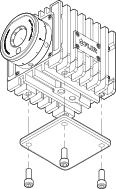
Figure 1.
CAUTIONDo not use screws longer than the specified maximum lengths. Screws that are too long will damage the camera housing or internal components.
Assemble the two-ball bracket.
Install the two-ball mounting bracket between the lower plate and the upper plate/camera unit.
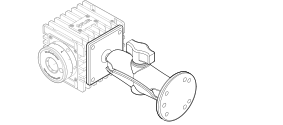
Figure 2.
Leave both ball clamps loose enough to allow pan, tilt, and rotation adjustment.
Aim and lock.
PoE power shall be connected, and the Power/Error indicator LED shall flash green.
Connect the Ethernet cable to the camera ETH/PoE port.
Use the camera's live image in the Flir web interface or Flir IP Config to adjust the pan, tilt, and rotation to cover the intended detection zone.
Tighten both ball clamps securely.
The field of view shall not move when the clamps are tightened.
The mounting shall be stable, and the camera shall not be unintentionally re-aimed under normal environmental conditions.
Final inspection before commissioning.
The mounting shall be stable and the field of view shall cover the intended detection zone without obstructions.
All cable connections shall be secured.
The cables shall be routed with appropriate strain relief.
For outdoor or wet-location installations, apply sealant to cable entry points to maintain the IP66 enclosure rating.
Do a commissioning functional test, see section Commissioning functional test.
NoteThe camera generates heat during normal operation. Mount on an aluminum bracket or heat sink to aid thermal management and minimize infrared detector drift. Do not allow the internal camera temperature to exceed 70°C (158°F) for extended periods.
Fire mode
Activate the fire mode via the Web interface:
Go to Settings.
Set Fire mode to On.
Click Apply.
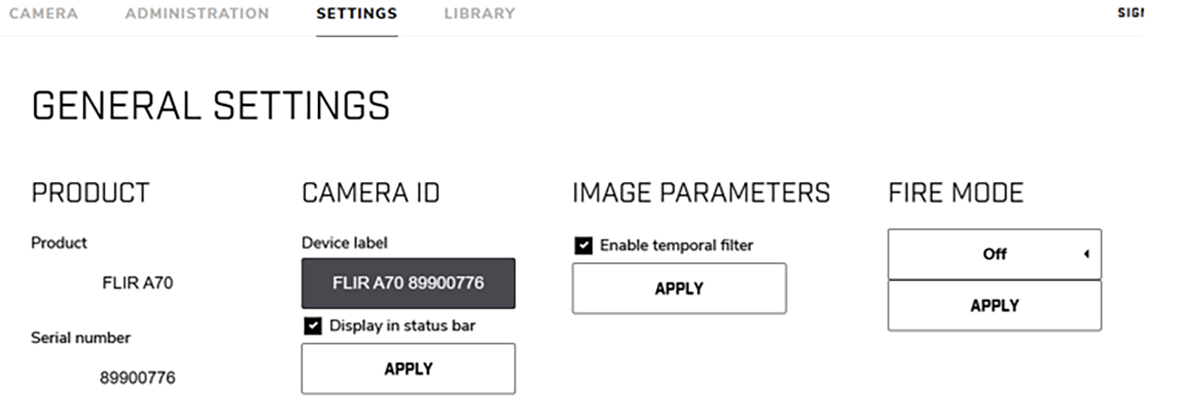
Figure 3.
Configure the measurement box for the region of interest (ROI).
Configure the alarm set point for your application.
Clear the maintenance alarm.